Complete Guide to Using Online SVG Editors
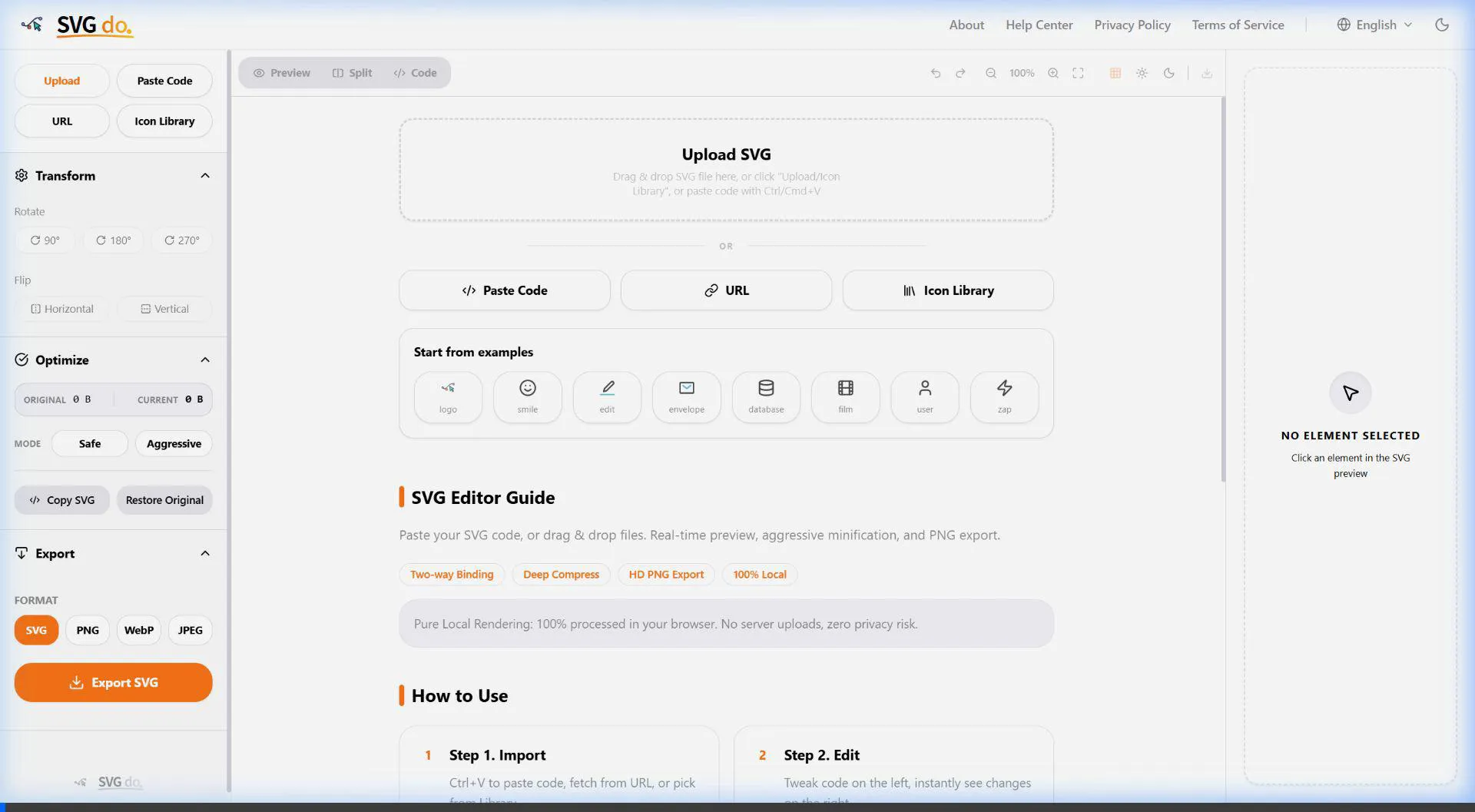
SVGDO is a browser-based workspace for people who need to inspect and adjust an SVG without opening a full design application. The editor keeps a visual preview and source-code view together, so a change to a fill, stroke, size, or transform can be reviewed before the file is downloaded.
SVG markup is processed in browser memory. Closing the tab clears the current workspace; analytics and advertising services are separate and are described in the Privacy Policy. Keep your original file in your own storage before trying an optimization pass.
Import an SVG
You can start in several ways:
- Drag an
.svgfile onto the editor or use the file picker. - Paste SVG markup into the code prompt.
- Load a public SVG URL when you have permission to fetch and use that file.
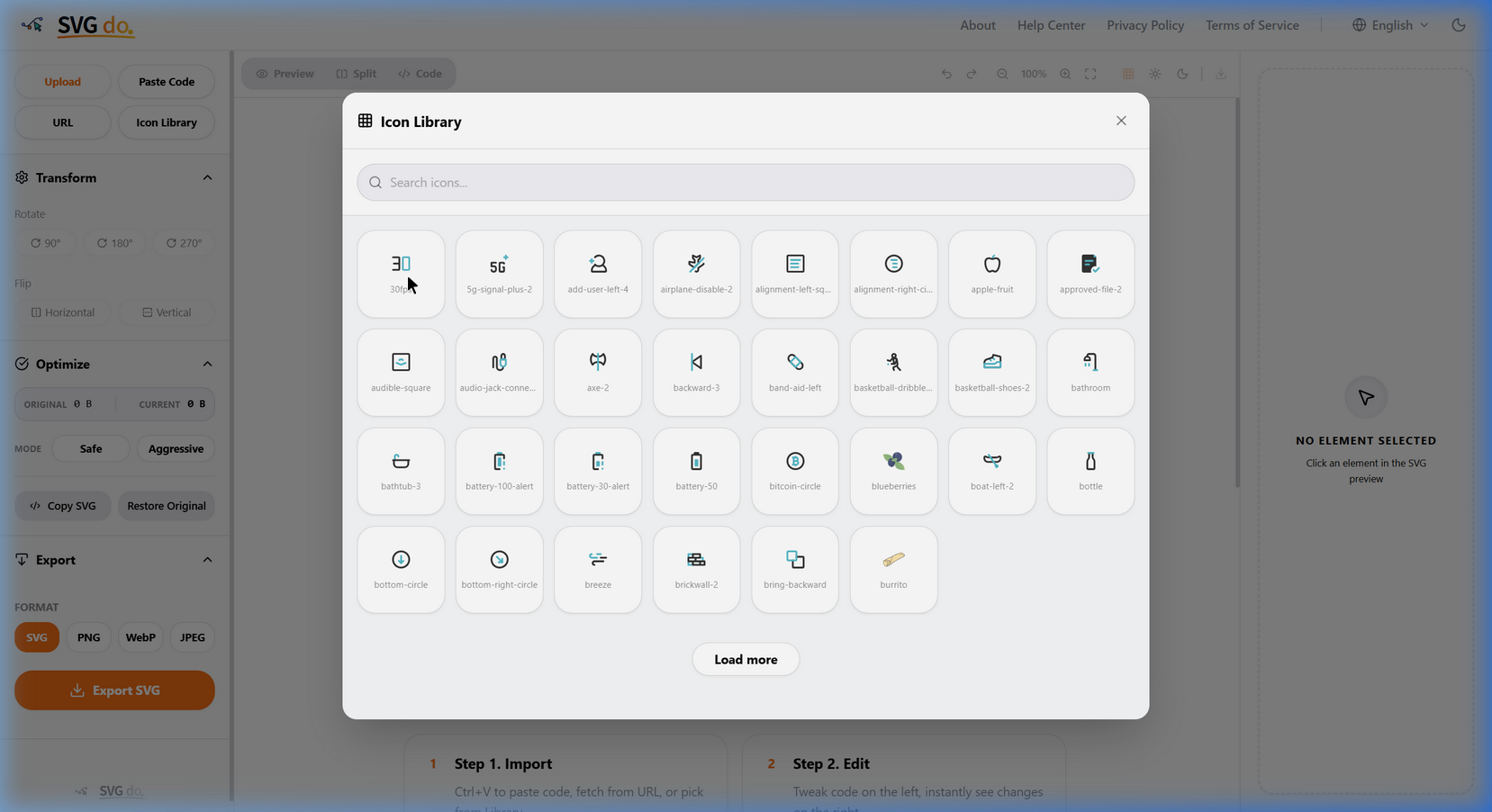
- Choose an icon from the bundled library and inspect its source as a starting example.
Remote files are untrusted input. Review the source and confirm its license before using an imported asset in a product.
Use the preview and code views together
The preview is useful for spotting alignment, clipping, contrast, and unexpected transforms. The code view is useful for checking the viewBox, IDs, styles, labels, and path data. Switch to split view when a change needs both kinds of feedback.
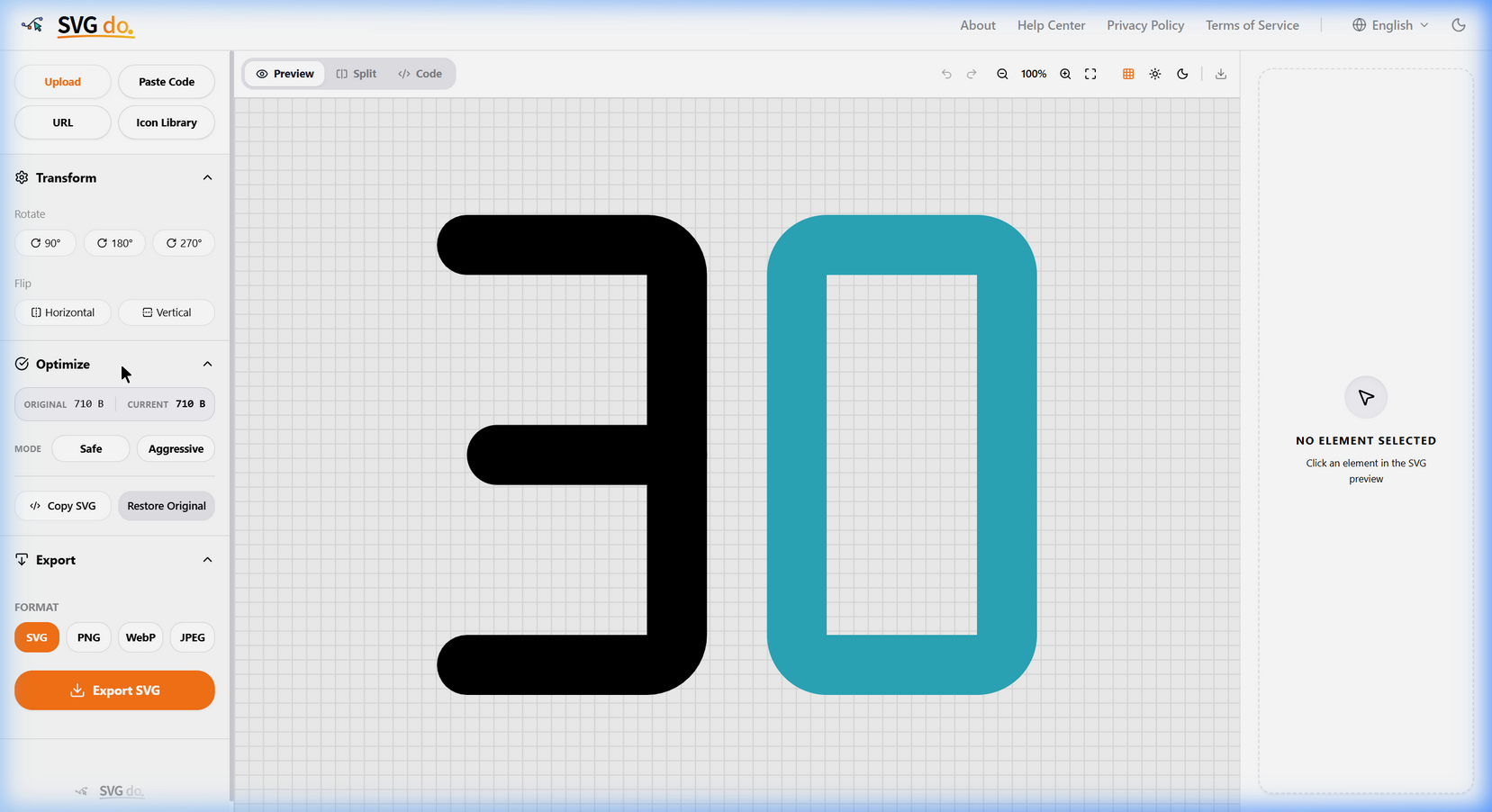
When an SVG is hard to read, start with its root element and work inward:
- Check the
viewBoxand intrinsic dimensions. - Find the group or shape that controls the visible area.
- Inspect
fill,stroke,stroke-width, opacity, and transforms. - Add a
<title>or<desc>when the image conveys information.
Changing one attribute at a time makes it easier to understand the source diff and to undo an unwanted result.
Select and adjust elements
Click a visible element in the preview to inspect its common properties. The properties panel can update fill, stroke, opacity, size, rotation, and scale while keeping the source synchronized. For a complex drawing, use stable IDs and groups so that a later CSS or JavaScript integration can address the intended element.
Keep the viewBox stable while you tune an element. If the artwork looks too small or clipped, the viewBox or an ancestor transform may be the real cause.
Optimize a copy, then compare it
The Optimize panel provides safe and aggressive modes. A safe pass is appropriate for removing comments, redundant whitespace, and metadata that is not needed by your workflow. An aggressive pass can also remove empty elements or reduce precision, which may affect animations, filters, IDs, or subtle curves.
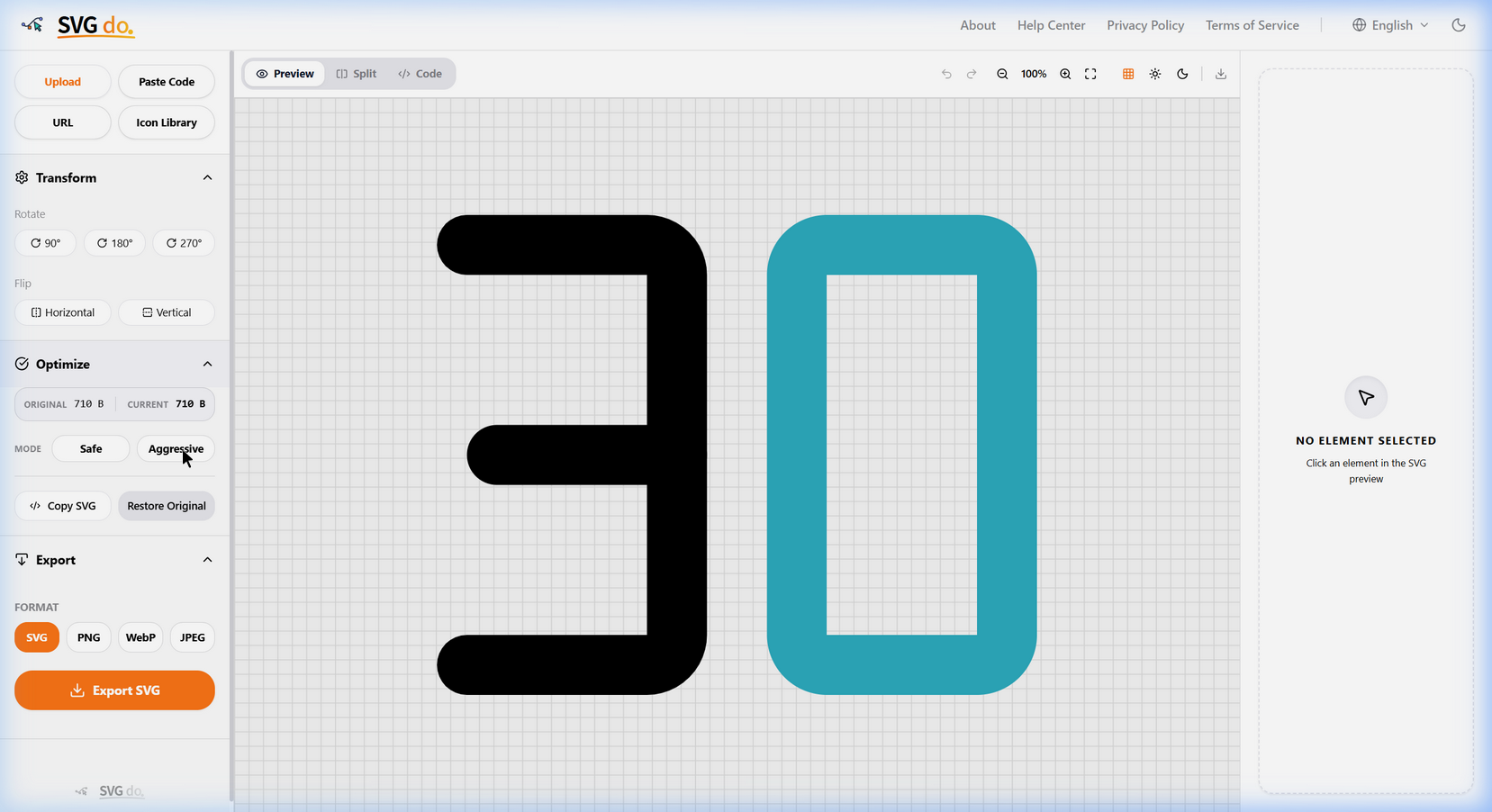
The result depends on the source file; there is no fixed percentage that applies to every SVG. Compare the original and optimized preview, verify the size change, and use Restore Original if a visual or behavioral regression appears.
Export SVG or a raster image
Use Download SVG when you need an editable vector source. Use the export panel when a receiving system requires PNG, JPEG, or WebP. Choose the dimensions and background intentionally:
- Transparent is useful when the image will be composited on several backgrounds.
- White or black can be useful for a presentation with a known background.
- A larger scale is not automatically better; check memory use and the final destination's dimensions.
Open the exported file independently and check thin strokes, small text, filters, transparency, and fonts. Keep the SVG source with the raster output for future revisions.
Keyboard shortcuts and safe handoff
Undo and redo help you explore a change without losing the source. Before sharing an asset, remove unneeded personal or proprietary metadata, confirm the license of embedded images and fonts, and test the file in the browsers where it will be used.
SVGDO is a review tool, not a replacement for a source-control workflow. The most reliable process is to keep the original, make a focused edit, compare the preview and source, and document the final dimensions and dependencies.